

Mettler Toledo WXS series
What you need
| Item | Detail |
|---|---|
| Instrument | A WXS balance, powered on, with an empty pan. Mettler Toledo specifies a warm-up of at least 120 minutes after power-up. |
| Connectivity | The load cell connects to the electronic unit with a special cable supplied by the manufacturer. The electronic unit connects to the computer with an RS232 cable. |
| Connector | Mettler Toledo WXS, package unitelabs-mettler-toledo-wxs 0.3.0 or later. |
| Vendor software | None. |
| Machine | A computer connected to the balance, running GroundControl. |
| Access | A tenant and a user account for the UniteLabs Platform and GroundControl. |
| Notebook | The IDE in the UniteLabs Platform, or a development machine with the UniteLabs SDK. |
Install and configure the connector
- In GroundControl, add a device and search for WXS205SDU/15 (Connector configuration).
- Choose to set up the connector automatically and download the correct connector version. This guide uses version 0.3.0.
- Fill in the General Configuration:
Field Value serial_portThe serial port of the balance. Defaults to /dev/ttyUSB0, a Linux port name. Set it to the port of your balance, for example/dev/cu.usbserial-XXXXon macOS orCOM3on Windows.simulation_modeDefaults to true: the connector returns sample values, including weights in milligrams, raises random errors, and does not open the serial port. Set tofalseto use the balance. - The default name of the SiLA server is
Mettler Toledo WXS. You can change it in GroundControl under the Local Network settings, in the Name field. - Start the connector with
simulation_modeset tofalseand enable Platform connectivity. The connector registers the featuresWeighingService,DeviceInformation,DeviceControl, andSimulationController. Note the service name for Python.
To switch between the simulator and the balance without restarting, run start_real_mode or start_simulation_mode under Simulation Controller.
First successful test
You can test the balance from the Devices view in GroundControl or the Platform, from a notebook (Platform IDE), from a Python script on your computer, or from a UniteLabs workflow.
The Devices view lists your devices and lets you send commands to the balance without writing code. GroundControl and the Platform show the same interface, so the steps are the same in both. Test in GroundControl does not require access to the Platform or internet.
- Clear the weighing pan.
- Select the Devices tab, then your balance, for example Mettler Toledo WXS.
- To read the model, find Device Information and select Read Model Designation. Select the lightning-bolt button to run the command. The Response panel shows
Command executed.and the model designation. - To tare the balance with the pan empty, find Weighing Service and select Tare. Select the lightning-bolt button. The response shows Tare Weight, Unit, and Is Stable. The screenshot below shows the Tare command and its response, from a connector in simulation mode, so the values are sample values.
- Place a sample on the pan. In Weighing Service, select Weight Immediately and select the lightning-bolt button. The response shows Weight Value, Unit, and Is Stable, in the balance's current display unit.
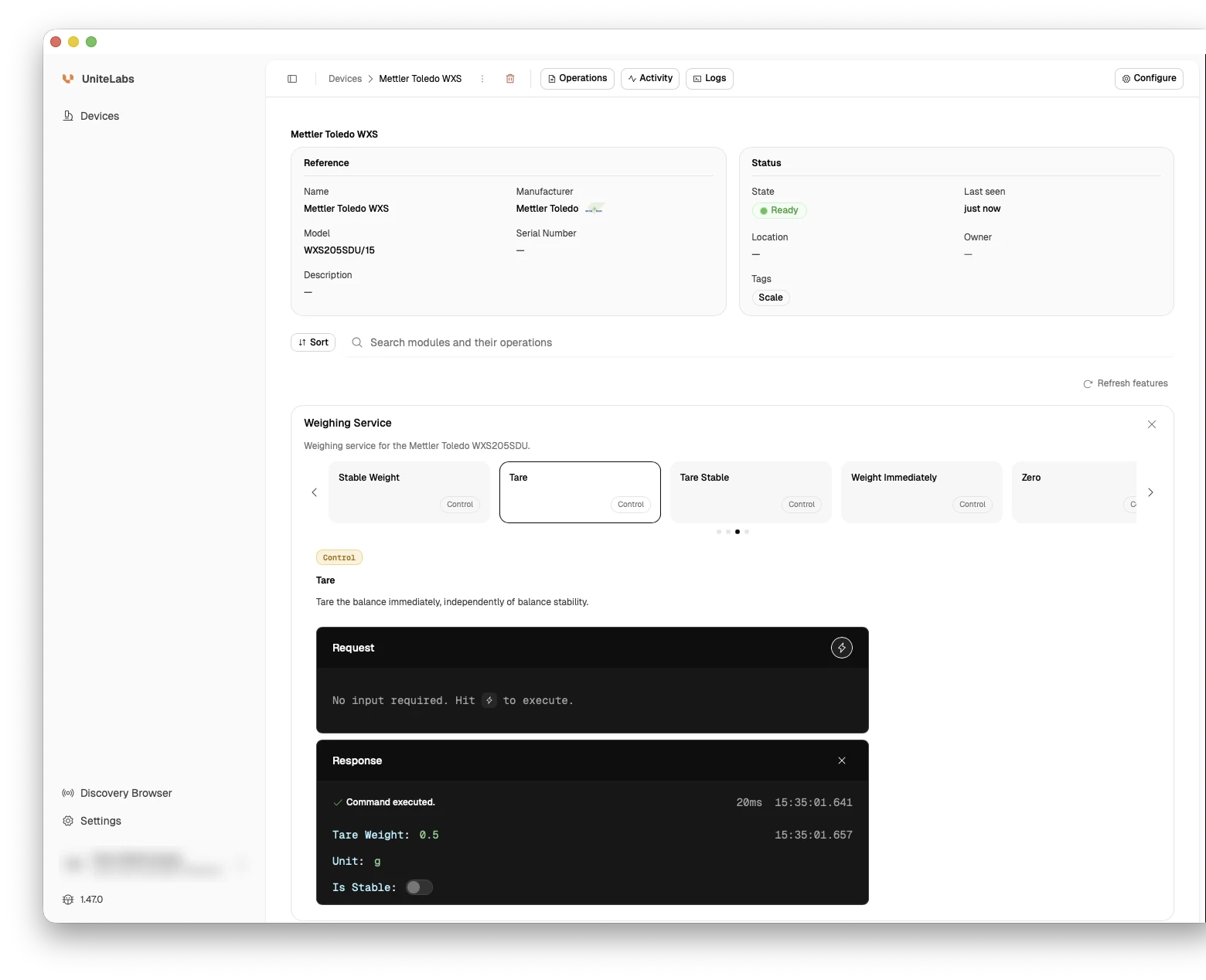
Tare and Weight Immediately return without waiting for the balance to settle, and Is Stable shows whether the value was stable. Tare Stable and Stable Weight wait until the balance is stable and return the same values without Is Stable. They fail with TimeoutExceededError if the balance does not settle within request_timeout.
In simulation mode, the commands return sample values and fail at random. Run the command again.
A notebook is a Jupyter notebook in the IDE of the UniteLabs Platform. You run code in cells and see each result below its cell.
- Clear the weighing pan.
- Sign in to the UniteLabs Platform in the browser and open IDE.
- Create a notebook and paste each block below into its own cell. If the first line,
from unitelabs.sdk import AsyncApiClient, fails, the SDK is not installed on your tenant yet. Ask your UniteLabs contact to install it.
Replace the service name in the first block with the one shown on the Platforms Connectors view.
Connect to the balance and read its model and serial number:
from unitelabs.sdk import AsyncApiClient

client = AsyncApiClient()
# "Mettler Toledo WXS" is the service name you set in GroundControl
scale = await client.get_service_by_name(name="Mettler Toledo WXS")

print(await scale.device_information.read_model_designation())
print(await scale.device_information.read_serial_number())
Expected: the model designation and the serial number print.
With the pan empty, tare the balance:
print(await scale.weighing_service.tare())
Expected: the result holds tare_weight, unit, and is_stable.
Place a sample on the pan, then read the weight:
print(await scale.weighing_service.weight_immediately())
Expected: the result holds weight_value, unit, and is_stable, in the balance's current display unit.
tare and weight_immediately return without waiting for the balance to settle, and is_stable shows whether the value was stable. tare_stable and stable_weight wait until the balance is stable and return the same values without is_stable. They raise TimeoutExceededError if the balance does not settle within request_timeout.
unitelabs-sdk 0.20.0.A Python script is a .py file that you run from your own IDE or terminal on your computer. You need a development machine with the SDK installed and authenticated, which includes API client credentials in a .env file. Replace the service name with the one shown in GroundControl.
A Python script cannot use await at the top level. The calls go into an async function that asyncio starts, as in Send your first request. Clear the weighing pan, then save the script as weigh_sample.py:
import asyncio

from dotenv import load_dotenv
from unitelabs.sdk import AsyncApiClient


async def main():
    client = AsyncApiClient()
    # "Mettler Toledo WXS" is the service name you set in GroundControl
    scale = await client.get_service_by_name(name="Mettler Toledo WXS")

    print(await scale.device_information.read_model_designation())
    print(await scale.weighing_service.tare())
    input("Place the sample on the pan, then press Enter")
    print(await scale.weighing_service.weight_immediately())


if __name__ == "__main__":
    load_dotenv()
    asyncio.run(main())
Run it with uv run weigh_sample.py (or whatever package manager you used). Expected: the model designation prints, then the tare result with tare_weight, unit, and is_stable. After you place the sample and press Enter, the weight prints with weight_value, unit, and is_stable, in the balance's current display unit.
tare and weight_immediately return without waiting for the balance to settle, and is_stable shows whether the value was stable. tare_stable and stable_weight wait until the balance is stable and return the same values without is_stable. They raise TimeoutExceededError if the balance does not settle within request_timeout.
unitelabs-sdk[automate] 0.20.0.A workflow is Python code that the Platform runs and records, with each run's inputs, logs, and results. It is built from steps, single actions that complete or fail as a whole, and a workflow function that calls them. A workflow runs without a person at the console, so it has no prompt for placing the sample. The empty container is on the pan when the tare starts, and a step between the tare and the weighing adds the material to weigh, for example by pipetting.
You need a development machine with the SDK installed and authenticated, which includes API client credentials in a .env file, and the automate extra of the SDK:
uv add "unitelabs-sdk[automate]"
Save the workflow as weigh_sample.py. Replace the service name with the one shown in GroundControl.
import asyncio

from dotenv import load_dotenv
from unitelabs.sdk import AsyncApiClient, get_logger, step, workflow


@step(name="Tare")
async def tare(service_name: str) -> dict:
    scale = await AsyncApiClient().get_service_by_name(name=service_name)
    return await scale.weighing_service.tare()


@step(name="Weigh")
async def weigh(service_name: str) -> dict:
    scale = await AsyncApiClient().get_service_by_name(name=service_name)
    return await scale.weighing_service.weight_immediately()


# The workflow arguments become the inputs you fill in when you start a run on the Platform
@workflow(name="Weigh sample")
async def weigh_sample(service_name: str = "Mettler Toledo WXS") -> float:
    await tare(service_name)
    # A step that adds the sample to the pan goes here
    result = await weigh(service_name)
    get_logger().info(f"Weight: {result['weight_value']} {result['unit']}")
    return result["weight_value"]


if __name__ == "__main__":
    load_dotenv()
    asyncio.run(weigh_sample())
Run it with uv run weigh_sample.py. Expected: the log shows the Tare and Weigh steps finishing in state Completed(), then Weight: with the value and unit, and the workflow finishing in state Completed(). Both steps run back to back here, so the weight is close to zero on a real balance.
The Tare and Weigh steps use tare and weight_immediately, which return without waiting for the balance to settle, and is_stable shows whether the value was stable. tare_stable and stable_weight wait until the balance is stable and return the same values without is_stable. They raise TimeoutExceededError if the balance does not settle within request_timeout.
See also deploy a workflow for the steps to run the workflow on the Platform.
Known quirks and errors
| You see | It means | Do this |
|---|---|---|
| Weights change on their own, in milligrams | Simulation mode is on. The connector returns sample weights that change between calls. | Set simulation_mode to false and restart the connector. |
Calls fail at random with BalanceInternalError, BalanceParameterError, ResponseFormatError, or other balance errors | Simulation mode is on. The connector returns random errors to exercise error handling. | Set simulation_mode to false and restart the connector. |
| The connector cannot open the serial port | serial_port does not name the port of the balance. | Set serial_port to the port the balance uses on the connector's computer. |
TimeoutExceededError from stable_weight, tare_stable, or zero_stable | The balance did not settle within request_timeout. Higher readability settings, drafts, and vibration lengthen settling time. The balance itself stops waiting after about 40 seconds (vendor manual, section 4.1). | Increase request_timeout. With a value above 40, or null, the balance gives up first and the call raises BalanceInternalError. Lower the readability with set_readability. Check that the balance is level and the location free of drafts and vibration. |
BalanceInternalError | The balance is not ready, for example right after it starts or restarts. | Wait a few seconds and retry. |
BalanceInternalError from stable_weight, tare_stable, or zero_stable long after power-up | The balance could not zero itself at power-up, for example because of drafts or vibration. Stable commands fail until a zero succeeds. | Check the ambient conditions. Read weight_immediately: a reading more than a few digits from zero confirms the problem. Then run zero_stable, or temporarily raise the stability criteria with set_stability_criteria. |
Underloaded from tare_stable, stable_weight, or weight_immediately | The balance reads below its zero. This happens when the zero was set with a weight on the weighing pan, and the load later drops below that weight. The balance sets a zero at every power-up and restart, including the restart after set_readability, so a vial on the pan at those moments has the same effect. | Remove the vial and everything else from the pan. Run zero_stable on the empty pan, then place the vial and run tare_stable. Always power up the balance and change the readability with the pan empty. |
Overloaded | The weight is above the balance's range. | Remove the load. |
| Tare and readability settings reset | set_readability restarts the weighing module, sets a new zero, and clears the tare memory. | Set the readability first, then zero and tare. |
zero and zero_stable only with an empty pan. All later readings, including the tare weight, are measured relative to the new zero.More snippets
- Change the display unit:
await scale.weighing_service.set_unit(unit="mg"). Supported units areg,mg,oz, andozt. - Preset a tare weight:
await scale.weighing_service.set_tare_weight(tare_preset_value=12.5, unit="g"). The balance rounds the value to its readability. - Clear the tare memory:
await scale.weighing_service.clear_tare_weight(). - Stop a running command:
await scale.device_control.cancel_command()ends zeroing, taring, and other running processes. - Read the stability criteria:
await scale.device_control.read_stability_criteria()returns the bandwidth and observation period for weighing, taring, and zeroing.
Connector reference
Browse the connected balance's features and commands in the Devices view, or list them in Python with the scale variable from the first test:
print(scale.modules.keys())
print((await scale.weighing_service).actions.keys())
The first line lists the modules, and the second line lists the actions of weighing_service. Replace weighing_service with another module name to list its actions.
Vendor documentation
Refer to Mettler Toledo's Instructions for Installation and Operation of the WXS and WXT weighing modules for detailed setup and operation instructions.
Last updated