

Connector Configuration
A connector configuration defines how the connector reaches the instrument, where its local SiLA 2 server listens, and how it connects to your tenant.
Choose how to run the connector
GroundControl is the default way to run and manage connectors, and the rest of this page follows it. Three alternatives exist for setups where GroundControl does not fit:
| Method | When |
|---|---|
| GroundControl (this page) | The default: a lab computer with a display and a supported operating system. |
| As an executable | GroundControl is blocked or unavailable: no display on the lab computer, an unsupported Linux distribution, or IT policy. For a permanent setup without a display, see the headless install. |
| From source | You develop or modify a connector and run it from a checkout. |
| Build your own | No connector exists for your instrument yet. |
Add a Device
A device in GroundControl represents a physical instrument. Connectors are then attached to devices to provide the communication layer. A device can hold several connectors, but only one connector that controls the instrument should run at a time; running two in parallel is not supported. Combinations that do work are complementary connectors that do not claim the instrument itself, for example a file system connector for instruments that create large files, such as sequencers or microscopes, or a power connector to switch the device on and off remotely. You can also attach several versions of the same connector for testing, with only one of them running.
- Click Add Device in the Devices page. This opens a three step dialog: Device Info, Connector, and Configure.
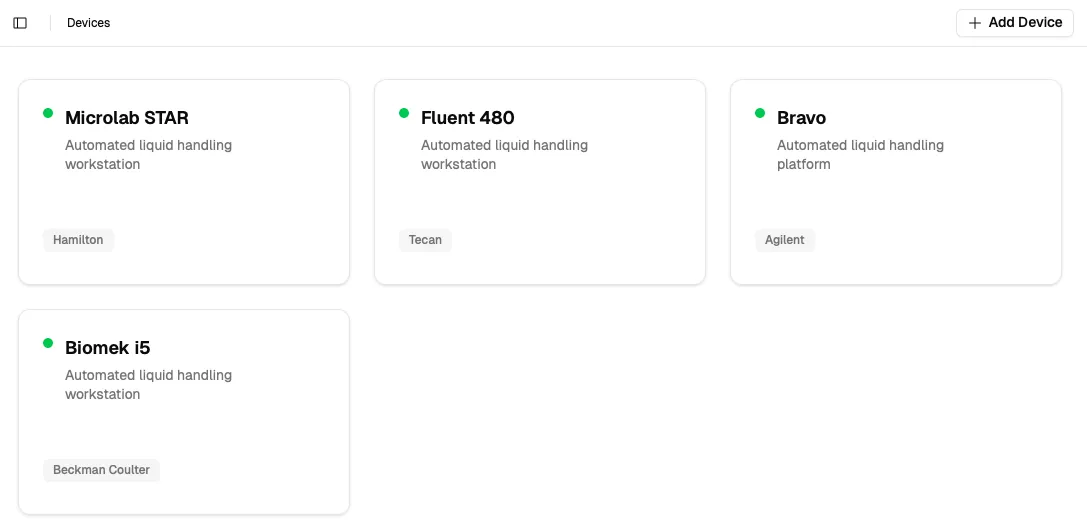
- Fill in the device metadata:
- Name: a human-readable label (e.g.,
Hamilton STAR) - Manufacturer, Model, Serial Number: optional but useful for auditing
- Description: any notes about this instrument or its location
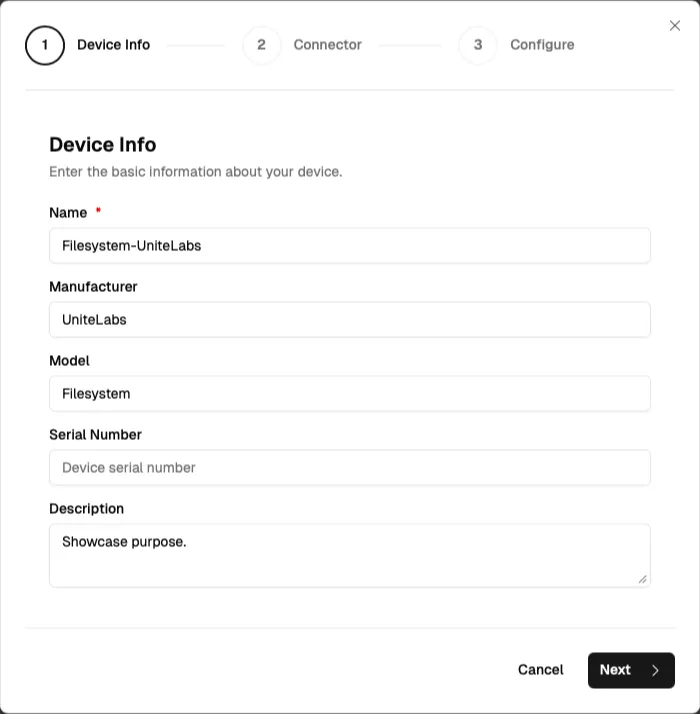
- Name: a human-readable label (e.g.,
- Click Next to proceed to connector selection.
For the File System Connector there is no instrument; the device stands for the computer whose folders you expose. Name it after the machine or the bench, for example Bench 3 file drop.
Add a Connector
A connector is an executable that enables communication with your instrument. Connectors use SiLA 2 for communication with GroundControl and the UniteLabs Platform. You can add a connector in four ways:
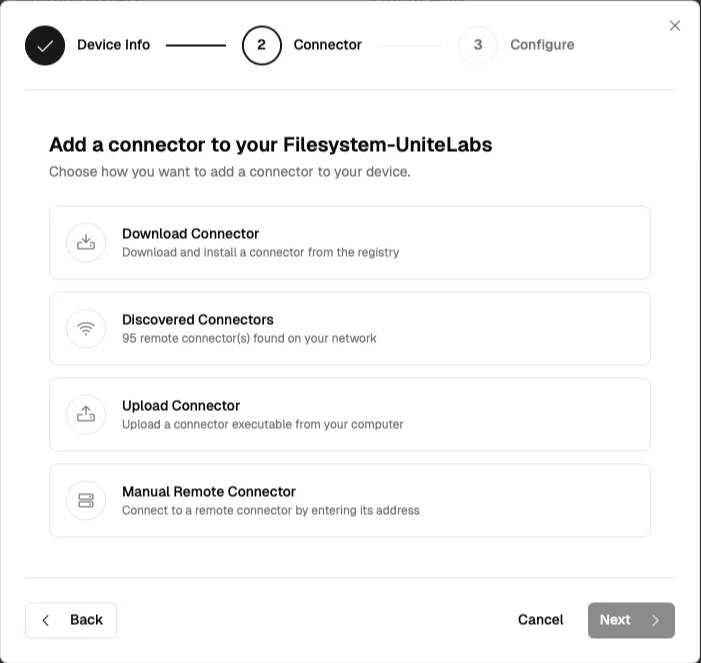
Download Connector
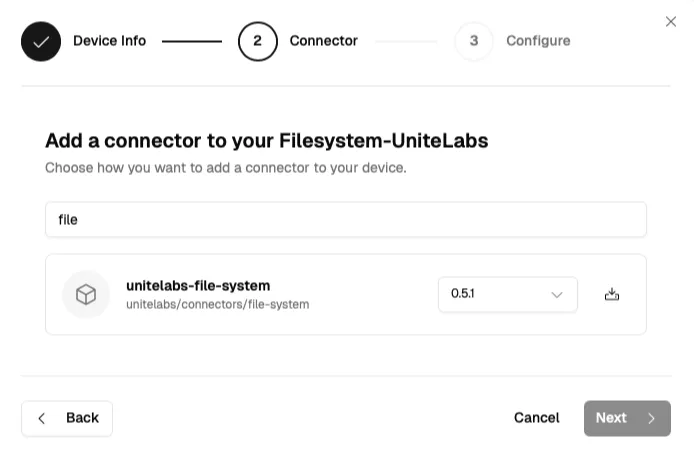
Choose Download Connector and search the connector catalogue for your instrument; the examples below continue with the File System Connector, so search for File System. Pick a version from the dropdown and click the download button next to it. GroundControl fetches the correct binary for your operating system and architecture automatically, and saves it to ~/.unitelabs/connectors/<connector-id>/. Wait until the download completes, then click Next. Pick the newest stable version. Versions tagged rc are release candidates for testing; they can fail to start or validate.
Discovered Connectors
If a connector is already running on your machine or a machine elsewhere in your network and broadcasting via mDNS, GroundControl will list it on the Home page and in the Connector step of the dialog. Typical cases are connectors running on the instrument's own control PC next to the vendor software, headless deployments on a server or Raspberry Pi, and third party SiLA 2 servers.
- Choose Discovered Connectors.
- Select the connector from the list of auto-detected SiLA servers.
- No local installation is needed. GroundControl connects to the remote process directly.
The Configure step of the dialog is skipped and the device is created right away. The connector is attached as a remote connector; its configuration is managed on the remote server and cannot be edited in GroundControl.
Upload Connector
If you are deploying in an air-gapped environment or do not have access to our registry, reach out to your UniteLabs contact or the responsible IT contact in your organization to get the respective connector executable for manual upload:
- Choose Upload Connector.
- Browse to your connector executable (or drag-and-drop it).
- GroundControl reads the connector's type and version automatically from the binary metadata.
Manual Remote Connector
The same cases as above, for networks where mDNS does not reach you, for example when it is blocked by IT policy or the connector runs in a different subnet. If the connector is running on a known host but not broadcasting via mDNS:
- Choose Manual Remote Connector.
- Enter the hostname or IP address and port.
- GroundControl queries that address and lists the available SiLA services to connect to.
As with discovered connectors, the Configure step is skipped and the configuration is managed on the remote server.
Configure a Connector
After selecting a connector (Download or Upload), the dialog shows a configuration form generated from the connector's own schema, grouped into four collapsible sections. Some connectors add a fifth, connector specific section. Expand each section and fill in the relevant fields:
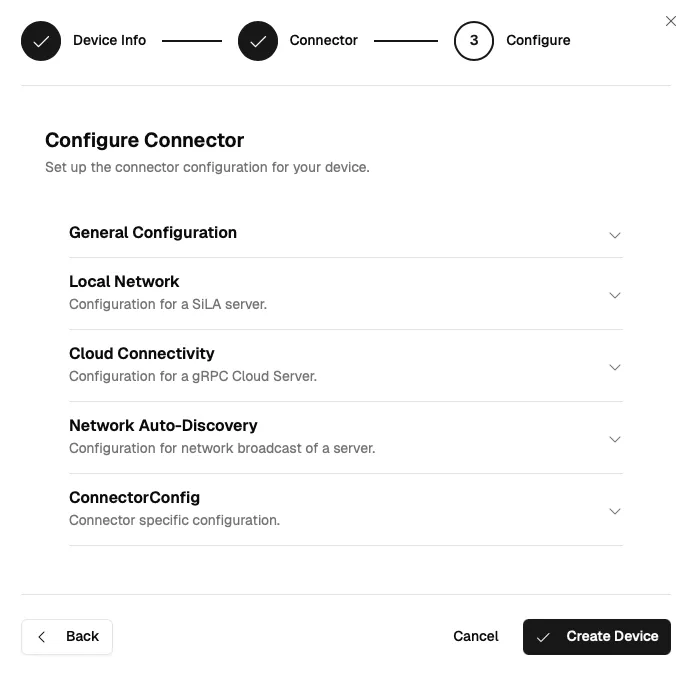
General Configuration
Options the connector itself exposes for how it runs. Example: Simulation Mode (start with a simulated device connection instead of the physical instrument). Check what Simulation Mode is set to before you start: a few connectors ship with it switched on. The connector then comes up, answers every call, and the instrument never moves. This section is also where the connection to the physical instrument is configured when the connector needs it, for example a serial port such as COM3 on Windows or /dev/ttyUSB0 on Linux, or the instrument's IP address. Connectors that detect their instrument automatically do not show such fields. The available options come from the connector's schema and differ per connector. See What is a connector for how connectors talk to instruments.
Local Network
The configuration of the local SiLA 2 server, in other words where the connector listens on this machine. Three fields matter in most setups:
- Hostname: the local address the server binds to. Keep the default
0.0.0.0to listen on all interfaces, or uselocalhostto make the connector reachable only from this machine. Do not enter a remote address such as aunitelabs.iodomain here. The connector does not start if the local SiLA server fails to come up, and without it the cloud connection fails as well. - Port: GroundControl fills in a free port when it builds the form; keep it so the address stays stable across restarts. If the field shows 0, set a port yourself: 0 means a new random port on every start. We typically use five digit ports in the range 50000 to 59999.
- Name: the human readable name of the connector. This name is displayed on the UniteLabs platform. For the running example:
File System (Bench 3).
The remaining fields can usually keep their defaults, and the certificate fields stay empty. The Uuid is the only field the form marks as required. GroundControl generates it, and it must stay the same across restarts: change it and your tenant sees an unknown new connector.
Cloud Connectivity
The outbound gRPC connection from the connector to the UniteLabs Platform. The connector dials out and keeps the connection open, so no inbound firewall rules are required.
Enabled stays ticked. Unticked, the connector never connects to any tenant.
Endpoints is a list, and on a fresh configuration it is often empty. Click Add Entry to create entry #1, then fill it in:
- Hostname: your tenant's cloud endpoint. GroundControl 1.44 and later derive it from your Tenant ID, see below. Otherwise you receive it individually from your UniteLabs contact, since its exact form depends on how your tenant is deployed, for example dedicated or shared.
- Port: 443. GroundControl 1.44 and later fill this in for a new entry. On older versions it starts at 0, so set it yourself.
- Tls: enable it. GroundControl 1.44 and later tick the box for a new entry. On older versions it starts unticked.
The rest of the entry (certificates, reconnect delay, options, name) keeps its defaults.
Use one entry per tenant. A second entry means a second connection, and the connector then talks to both tenants at once.
An empty field or a localhost value is a placeholder, not a configuration. If these values are wrong, the connector runs locally but never appears in the platform.
GroundControl 1.44 and later prefill these values from the Default Cloud Server URL and Default Cloud Server Port settings (set during installation) when the connector is added. The prefill reaches only connectors that declare a single cloud server endpoint. Connectors built with CDK 0.13 or later carry a list of endpoints and start empty. Whenever a field stays empty or shows the placeholder, enter the value by hand.
Check this section again after updating a connector to a new version. We have seen updates drop the cloud settings.
Network Auto-Discovery
Controls how the connector announces itself on the local network via mDNS (IP version and network interfaces). The defaults are fine for most setups; only change this if discovery is not working, for example when the machine has multiple network interfaces.
ConnectorConfig
Only shown for connectors that define additional connector specific parameters. The fields come from the connector's schema and differ per connector; most connectors do not have this section.
The File System Connector uses this section for its access control. Each Access entry pairs a list of directories with the permissions granted on them: read, write, delete. Add the folder you want to expose, for example the directory your instrument writes result files into, and grant at least read. The directories must exist when the connector starts. Older connector versions offered a read-only folder whitelist instead; it is deprecated, and existing entries are treated as read-only access rules.
Expand each section, fill in the fields, and click Create Device. GroundControl writes a config.json file alongside the connector executable.
The form renders what the connector's schema declares, and older GroundControl versions leave out parts of it. If a setting you expect is missing, logging for example, it still exists in that config.json under ~/.unitelabs/connectors/<connector-id>/, where support can adjust it.
Start and Stop Connectors
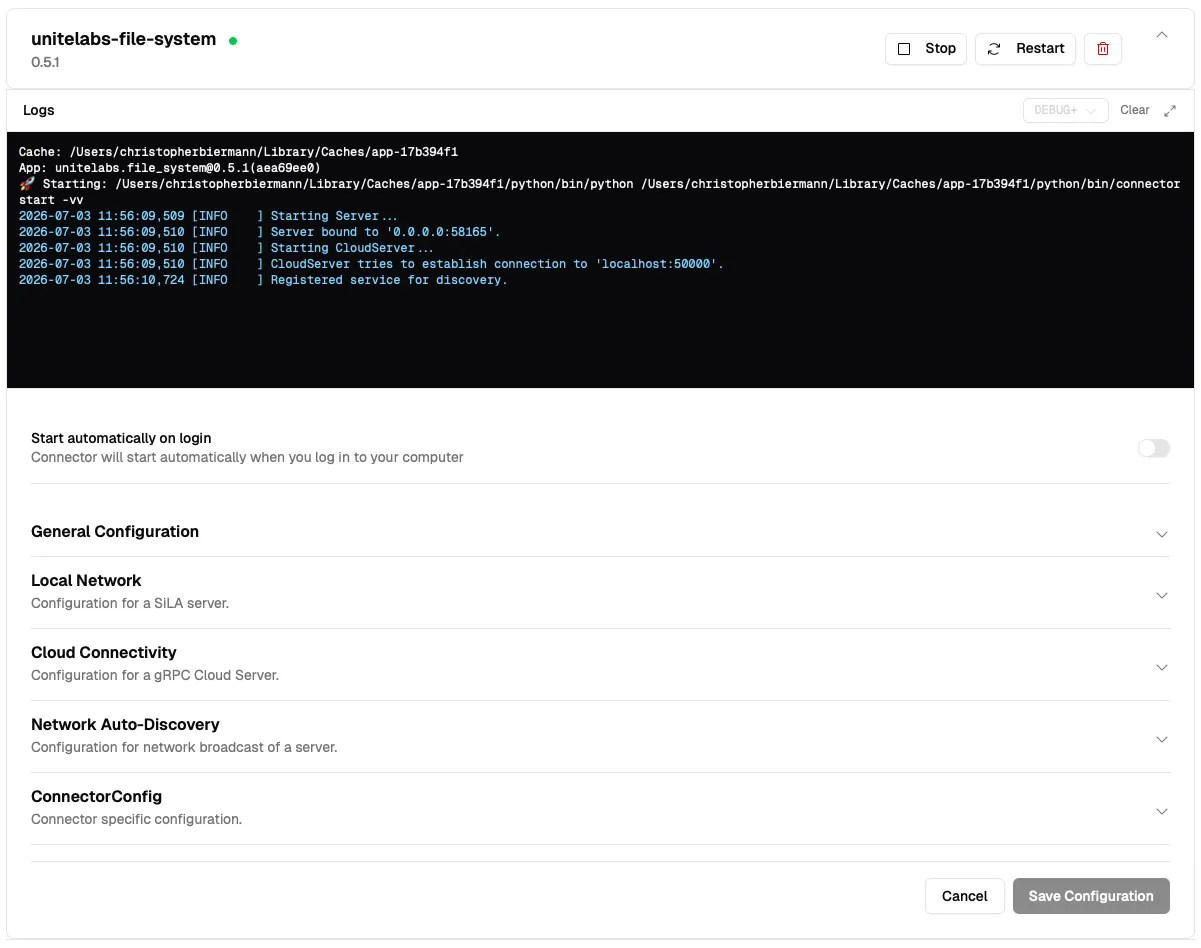
Open Devices, click your device, then click Configure. The Configure view shows the device details and every connector attached to this device.
Each connector row shows the connector name, its version, and a status light: green when the connector process is running, red when it is stopped or in error.
Click Start to launch the connector. While it is running, the row shows Stop and Restart instead. The connector must be running for workflows to reach your instrument via the UniteLabs platform.

Logs, Auto-Start, and Configuration Changes
Expand a connector row to manage everything about this connector in one place:
- Logs: the live log output of the connector process. This is the first place to look when a connector does not start or does not connect.
- Start automatically on login: enable this toggle to start the connector automatically when you log in to your computer. The connector must be configured before the toggle can be enabled.
- Configuration sections: the same sections as in the Add Device dialog (General Configuration, Local Network, Cloud Connectivity, Network Auto-Discovery), pre-filled with the current values.
To change the configuration later: adjust the fields, click Save Configuration, and Restart the connector. Changes only take effect after a restart.
Log Files
Everything GroundControl manages lives in the .unitelabs folder of your user directory. GroundControl writes its own application log there, and each locally managed connector writes a log file next to its executable and config.json:
| Platform | GroundControl application log | Connector logs |
|---|---|---|
| Windows | %USERPROFILE%\.unitelabs\logs\groundcontrol.log | %USERPROFILE%\.unitelabs\connectors\<connector-id>\connector.log |
| macOS and Linux | ~/.unitelabs/logs/groundcontrol.log | ~/.unitelabs/connectors/<connector-id>/connector.log |
The application log rotates; older files carry a timestamp suffix. Check the connector log when a connector fails to start or connect; check the application log for problems with GroundControl itself, such as sign-in or registry access.
Remove a Connector or Device
- To take a connector out of service temporarily, click Stop. It stays configured and can be started again at any time.
- To remove a connector from the device, click the trash icon in the connector row.
- To delete the whole device including its connectors, open the three dot menu next to the device name and select Delete.
Verify the connector works
Verify the connector locally and through your tenant. A green status light confirms only that the connector process is running.
In GroundControl: open Devices, click your device, then the Operations tab, expand a module and run a harmless read operation. On an instrument connector, a good first call is Get Firmware Version in the device service module. On the File System Connector, expand Folder Service and run List Files with one of the configured directories as the path; the response lists the files in that folder. If this works, the connector reaches its instrument.
In your tenant: open the Connectors page in the web interface. The connector appears as online within a few seconds. Open it and run the same read operation from there. This confirms both the platform-to-connector and connector-to-instrument connections.
For other operations, see Use a connector via GroundControl.
Troubleshooting and common mistakes
A run or script fails with ServiceUnavailableException, status 503, "SiLA server with serverUUID ... is not connected". The platform holds no open connection to that connector. The message names a UUID, not a connector; the Connectors page in your tenant tells you which one it is. Then work through this order on the lab computer:
- Is the connector running at all? Check its status light in GroundControl and read the connector logs (expand the connector row).
- Does a second instance hold the same identity? A twin entry named
... (2)on the Connectors page means the connector was re-added and now runs under a new UUID, while everything that referenced the old one keeps failing. - Are the Cloud Connectivity values right? See the next item.
- Restart the connector last. If Restart has no effect, use Stop and then Start. A restart alone rarely fixes this error.
Several connectors fail with 503 at the same time. Then it is usually not your lab. Platform maintenance and outages look exactly like a local connection problem. Ask support before you change anything on the lab computer.
The connector runs and responds in GroundControl but never appears in your tenant, or stays offline there. The Cloud Connectivity values are wrong or still on the placeholder. Typical after adding a connector without the Settings prefill, or after removing and re-adding one: a reinstall resets the configuration and the server UUID, see the callout in Remove a Connector or Device. Enter your tenant endpoint, port 443, TLS enabled; save, restart, and run the verification above.
The connector shows online in your tenant but the instrument does not respond. Online means the connector process is connected to your tenant, nothing more. Run a read operation to test the instrument link; if it fails, check the physical connection, whether Simulation Mode is switched on, and the instrument fields in General Configuration.
Starting or restarting fails with "uuid already exists". A running connector already claims this server UUID: usually a second instance of the same connector on this or another machine, or a copied configuration. Find and stop the duplicate instead of changing UUIDs by hand; that multiplies the confusion. The Connectors page in your tenant lists everything currently registered.
Your tenant shows a connector as online that is long dead. A stale registration can block the connector from registering again. Delete the entry on the tenant's Connectors page, then restart the connector so it registers fresh.
The connector downloads but does not start on Windows. Three known causes: the Microsoft Visual C++ Redistributable is missing or broken (install or repair it), Windows quarantines the downloaded executable (right click the file, Properties, Unblock, or Unblock-File in PowerShell), or the instrument's USB driver is missing (many serial-over-USB instruments need the vendor's VCP driver).
Only a red status light and empty logs. Run the same connector once from a terminal, see As an executable; the console output usually names the problem, for example a directory in the File System Connector's access list that does not exist.
GroundControl shows no connectors although they were set up on this machine. GroundControl stores connectors, configurations, and logs per user under ~/.unitelabs. Signed in to the computer as a different user, you see nothing. Use one shared lab account, see the Setup guide.
Next steps
Your connector is online. See it from your tenant with Use a connector from the platform, or reach it from Python with Calling a connector.