

Object Storage
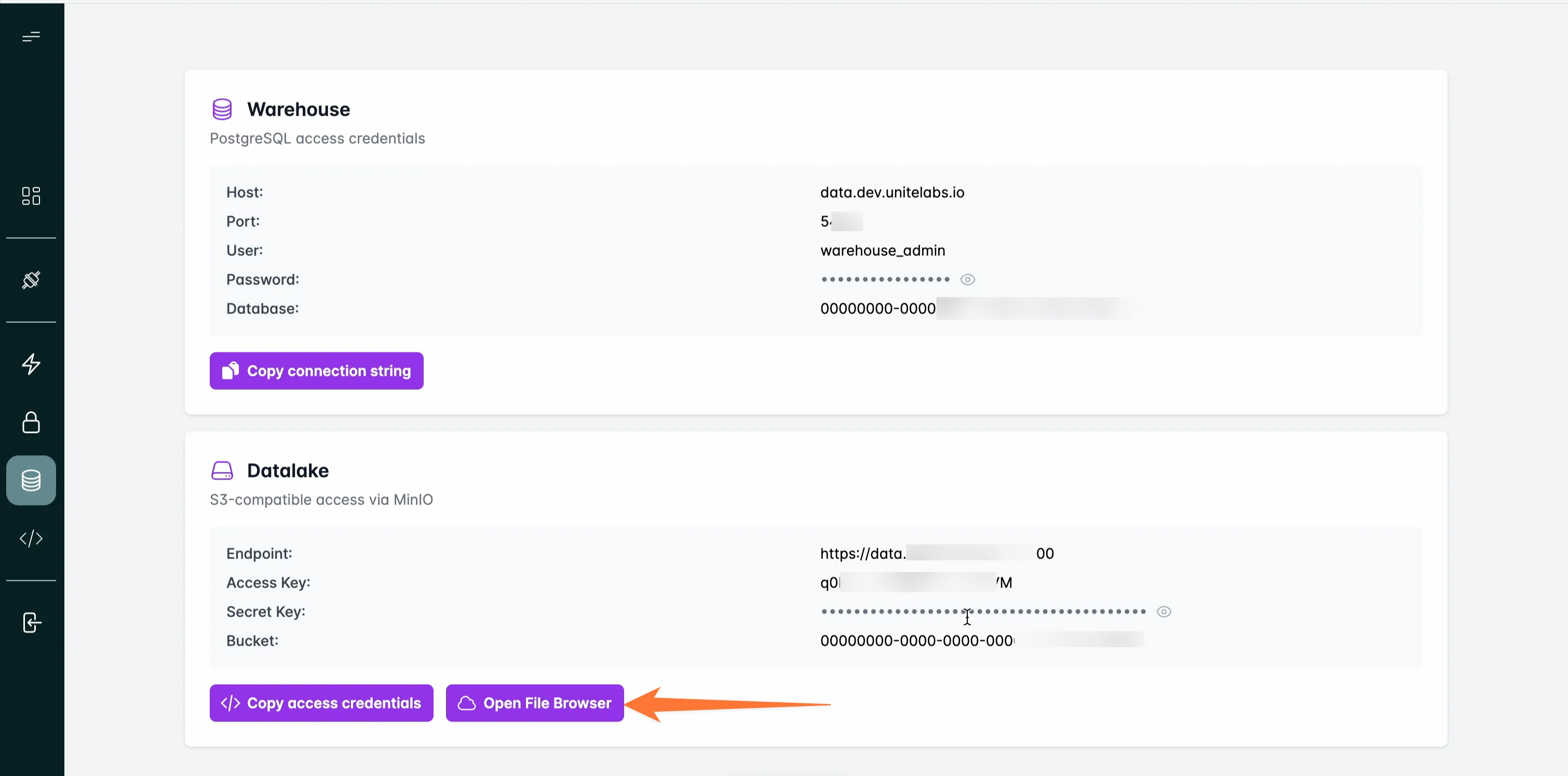
UniteLabs provides an S3-compatible object store (MinIO) for persisting raw instrument files and processing artifacts. It is the primary landing zone for data before it is processed by ETL workflows — every raw file is archived here before anything is parsed or transformed.
What you can do
- Upload raw instrument files directly from a connector using the UniteLabs SDK
- Retrieve and download files for downstream processing or reprocessing
- Organize data by instrument type using path prefixes
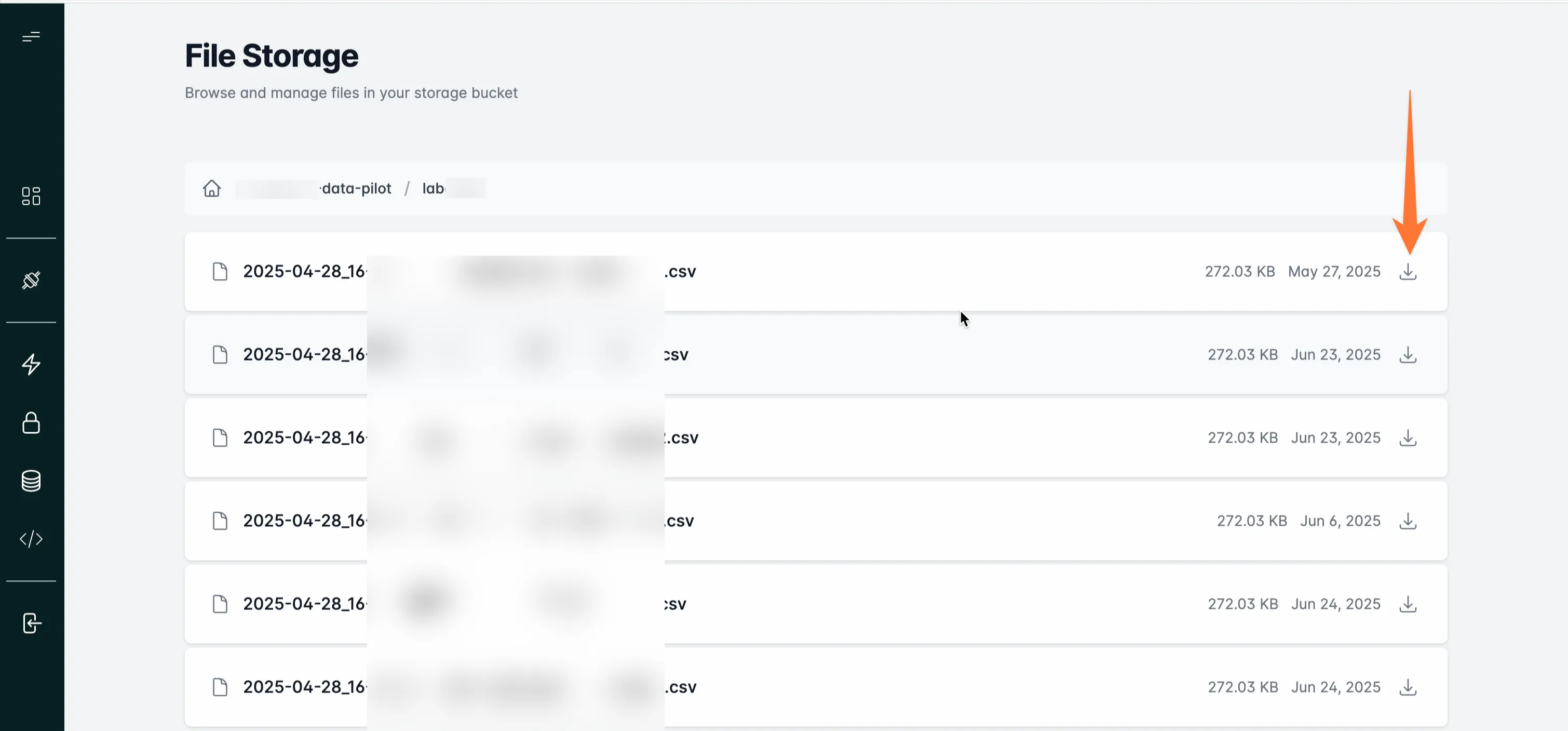
- Browse and download blobs from the UniteLabs platform UI
- Access the store from any S3-compatible client or library (
boto3,s3cmd, AWS CLI)
Credentials
Credentials are stored under the datalake-admin secret. Load them at runtime — never hardcode them in workflow code:
from unitelabs.sdk import AsyncApiClient

async with AsyncApiClient() as client:
    secrets = await client.get("/secrets")
    datalake_secret = next(s for s in secrets if s["name"] == "datalake-admin")
    params = datalake_secret["parameters"]

access_key = params["minio_root_user"]
secret_key = params["minio_root_password"]
endpoint_url = params["aws_client_parameters"]["endpoint_url"]
bucket_name = params["aws_client_parameters"]["bucket_name"]
access_key or secret_key in workflow code. Always load them from the secrets manager at runtime.See Secrets for instructions on adding or rotating credentials.
S3 URL format
The UniteLabs SDK uses a custom s3s:// scheme that embeds credentials directly in the URL. This is the format expected by device.s3_service.upload_file():
s3s://ACCESS_KEY:SECRET_KEY@host:port/bucket/object-path
Canonical path prefixes by instrument type:
| Instrument | S3 prefix |
|---|---|
| LabChip GXII Touch | data/instruments/labchip/ |
| Tecan Spark | data/instruments/tecan_spark/ |
| NanoTemper Prometheus | data/instruments/nanotemper/ |
Upload a file from a connector
The most common write path: use the SDK's s3_service on a File System Connector device. The connector handles the transfer directly — no local intermediate copy needed.
from unitelabs.sdk import AsyncApiClient

async with AsyncApiClient() as client:
    device = await client.get_service_by_name("File System (LabChip)")

    s3_url = (
        f"s3s://{access_key}:{secret_key}"
        f"@{host}:{port}/{bucket}/data/instruments/labchip/run_001.csv"
    )
    await device.s3_service.upload_file(
        path="/data/labchip/results/run_001.csv",
        s3_url=s3_url,
    )
datalake-admin secret. See Building an ETL for the full pattern.Upload a file with boto3
Use this when uploading from a script or task that does not go through a connector (e.g., post-processing or reprocessing):
import boto3

s3 = boto3.client(
    "s3",
    endpoint_url="http://host:9000",
    aws_access_key_id=access_key,
    aws_secret_access_key=secret_key,
)

s3.put_object(
    Bucket=bucket_name,
    Key="data/instruments/labchip/run_001.csv",
    Body=file_contents,  # bytes
)
Download a file
response = s3.get_object(
    Bucket=bucket_name,
    Key="data/instruments/labchip/run_001.csv",
)
file_contents: bytes = response["Body"].read()
Browse blobs in the UI
Navigate to Data → Object Storage in the UniteLabs platform to browse, preview, and download stored files without writing any code.
Next steps
- File System Connector — trigger uploads automatically when new instrument files appear
- Building an ETL — full example of upload → transform → warehouse pipeline